The catch: integration quality varies widely. Phone system type, software compatibility, network infrastructure, and configuration decisions all determine whether your integration simplifies workflows or creates new friction points.
This guide covers the exact steps to integrate a business phone with your office systems, what to prepare beforehand, the variables that most affect success, common mistakes, and when full integration may not be worth the effort.
Key Takeaways
- Phone-to-office integration connects your calling system to CRMs, calendars, and helpdesks to reduce manual work and sharpen customer context.
- Cloud-based VoIP and UCaaS platforms are the most integration-ready; legacy PBX systems often need SIP trunking or middleware as a bridge.
- Audit your software stack and confirm API access tiers before selecting a phone platform — many tools gate integrations behind premium plans.
- The most common failures: skipping compatibility checks, misconfigured field mappings, poor network QoS, and inadequate staff training.
- AI-enabled platforms like Eva Speaks extend integration value with real-time transcription, LLM-powered call handling, and configurable routing rules that work alongside your existing office tools.
See how AI-enabled phone integration works in practice. Explore AI Call Automation
How to Integrate Business Phones with Your Office Systems
Step 1: Audit Your Current Communication Stack
Start by listing every office system your team actually uses daily — CRM, helpdesk, calendar, and project management tools. For each one, check whether it supports native phone integrations or exposes an API.
Key compatibility checks by platform:
- Salesforce: Open CTI supports third-party phone integration, but API access requires Enterprise Edition or a separate purchase on Professional
- HubSpot: Calling Extensions SDK enables custom calling from CRM records; webhook support varies by plan
- Zendesk: Talk Partner Edition supports CTI APIs — confirm you're on a qualifying plan before proceeding
- Freshdesk: CTI framework is available on paid tiers only, excluded from Free plans
- Google Workspace / Microsoft 365: Both support OAuth-based connections with most major VoIP platforms
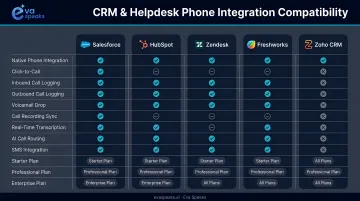
Also assess your current phone system. Cloud-based VoIP typically offers pre-built connectors. Legacy PBX or analog systems require SIP trunking or an ATA adapter as a bridge to modern software — workable, but it adds complexity.
Step 2: Choose or Upgrade Your Business Phone Platform
Select a platform that explicitly lists integration support for your specific tools — not just generic "CRM integration." Confirm whether each connector is native (no-code), API-based (requires developer work), or middleware-dependent (adds latency and a third-party dependency).
Integration types compared:
| Type | Setup effort | Real-time sync | Best for |
|---|---|---|---|
| Native/pre-built | Low (no-code) | Yes | Common tools like Salesforce, Zendesk |
| API/SDK | High (developer) | Yes | Custom field mapping, complex workflows |
| Middleware (Zapier) | Medium | Limited | Gaps where native connectors don't exist |
For teams that need more than basic call logging, AI-enabled platforms can handle calls intelligently — routing, responding, and syncing data in real time. EvaSpeaks, for example, offers customizable call-flow scripts and LLM-powered responses that connect directly to CRM records and ticket workflows. Because EvaSpeaks is built around standard integration tokens rather than proprietary middleware, it can plug into a business's existing CRM without requiring custom development work.
Watch how AI handles an integrated business call flow. Watch AI Call Flow Demo
Here is how AI-native, UCaaS, and basic phone integration approaches compare for connecting business phones to office systems:
| AI + Business Phone (EvaSpeaks) | UCaaS Platform (RingCentral) | Basic Click-to-Call Integration | |
|---|---|---|---|
| Features | AI voice handling + CRM/calendar sync, after-hours AI, 24/7 | Unified calling, messaging, video, CRM pop | Click-to-call, basic call log sync |
| Best-fit Business Size | SMB to mid-market | Any size | Any size |
| Key Strengths | AI handles overflow, no missed calls, deep integrations | Full unified comms, all-in-one | Simple, low cost |
| Implementation Complexity | Low | Low to Medium | Low |
| Integration Capability | CRM, EHR, calendar, scheduling native | Varies by UCaaS | CRM click-to-call only |
Step 3: Configure the Integration Between Phone System and Office Tools
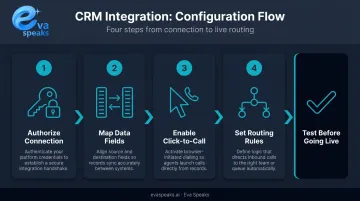
Most platforms provide a setup wizard for each integration. The general process:
- Authorize the connection — typically via OAuth in the admin dashboard
- Map data fields — link caller ID, call duration, recording URL, and transcription text to corresponding CRM or helpdesk fields
- Enable click-to-call — activate it within your CRM interface where supported
- Set routing rules — configure inbound call logic: route known contacts to assigned reps, trigger new helpdesk tickets on missed calls, or set business-hours routing
Default field mappings rarely match a company's custom CRM schema, so plan to review and remap fields manually during setup. Before going live, create a test contact with a known phone number and place a test call to confirm the log appears in the correct record.
Step 4: Test, Train, and Optimize
Before switching over fully, run end-to-end tests:
- Place test calls and confirm logs appear correctly in your CRM
- Verify calendar invites populate with meeting links
- Check that voicemail transcriptions route to the right inboxes
- Test routing scenarios using real contact records
Training is where most integrations break down in practice. Salesforce data shows only 37% of sellers strongly agree their organization fully uses CRM capabilities — which means even a technically solid integration underperforms if staff keep using old manual habits.
Cover these areas in your training:
- How to initiate calls via click-to-call
- Where to find auto-logged call records in the CRM
- How to access call recordings and transcriptions
- What the new dashboards and call analytics show
- How new hires can complete setup without IT involvement
What You Need Before Integrating Your Business Phone System
Most integration failures trace back to skipped preparation — problems that were visible before setup ever started.
Equipment and System Requirements
VoIP call quality depends on network readiness, not just software configuration. Microsoft recommends 58/58 Kbps up/down for Teams one-to-one audio; Cisco's codec examples show per-call bandwidth ranging from 62.4 Kbps (G.729) to 174.4 Kbps (G.711) depending on codec and packet size.
Before deploying:
- Run a VoIP speed and latency test on your network (target under 150 ms one-way latency)
- Enable QoS on your router to prioritize voice traffic with DSCP marking
- Use wired Ethernet for desk phones where possible
- Confirm your router and switches support QoS configuration
Software and API Compatibility
Check subscription tiers before committing to a phone platform. Many CRMs and helpdesks gate third-party integrations behind premium plans — Salesforce API access on Professional Edition requires a separate purchase, and Freshdesk CTI is excluded from the Free tier entirely. Discovering this post-contract adds cost and delay.
Team Readiness
Once your systems are confirmed compatible, the next step is people. Assign an integration owner — an IT admin or operations lead — who will manage:
- OAuth credentials and permission scopes
- Field mapping configurations
- Sync error monitoring and troubleshooting
Also establish a rollback plan before cutover. If the integration disrupts live call handling, you need a defined path back to the previous setup while issues are resolved.
When Does Integrating Business Phones with Office Systems Make Sense?
Integration isn't the right call for every team. The value scales with call volume, team size, and reliance on data-driven workflows.
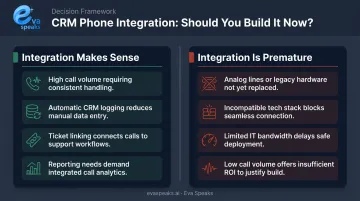
Integration delivers strong ROI when:
- Your team handles high inbound call volumes and needs instant caller context on screen
- Sales reps need automatic call logging to CRM records to avoid manual entry
- Support operations link calls to open tickets for resolution tracking
- You're measuring call outcomes and need clean data for reporting
Integration is premature or problematic when:
- Your business still runs on analog/PSTN lines with no migration plan
- Your software stack includes multiple incompatible tools with no unified data model
- Your team lacks the IT bandwidth to maintain API connections and handle sync failures
- You're a small team with low call volume where automation saves less time than it costs to configure
The second list is where most small teams land. A two-person shop on basic call forwarding doesn't need a full CRM-phone sync — the setup, maintenance, and training costs will outpace any time saved. Integration earns its place when the volume of calls and records is large enough to make automation genuinely faster than doing it manually.
Key Variables That Affect Integration Success
Phone System Type
Cloud-based VoIP exposes REST APIs and pre-built connectors to modern office tools. On-premise PBX and analog systems often need SIP trunking (connecting the IP-PBX to a cloud provider like Twilio) or Microsoft Direct Routing (connecting via a Session Border Controller) as a bridge. These architectures solve connectivity but don't automatically resolve CRM data fidelity or real-time sync issues.
API and Webhook Support
How your phone platform communicates with connected tools matters as much as which tools it connects to.
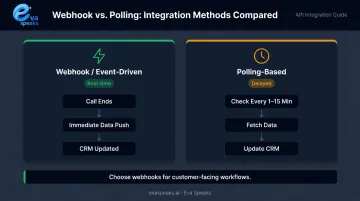
- Webhook/event-driven integrations: Trigger instantly when a call ends, a voicemail arrives, or a routing event occurs — ideal for customer-facing workflows
- Polling-based integrations: Check for new data at intervals; Zapier's polling runs every 15 minutes on Free plans and every 1 minute on Professional tier — workable for some use cases, problematic for urgent support workflows
Native webhooks are more reliable for real-time call events than scheduled data syncs. Verify which method your phone platform uses for each target tool before committing.
AI and Automation Layer
Standard VoIP routing sends calls to a destination based on predefined rules. AI-enabled platforms go further: they route based on caller intent, write transcriptions directly into CRM notes, trigger follow-up actions automatically, and flag calls that need human review.
Gartner projects that at least 70% of customers will use conversational AI to start a customer service journey by 2028. Platforms like Eva Speaks — which use LLMs, speech-to-text, and text-to-speech to handle calls in real time — represent the direction integration is heading: not just logging calls, but making call data actionable within connected systems.
Without automation, staff manually log calls and update records after each interaction. That lag introduces gaps — missed updates, inconsistent notes, and CRM records that don't reflect what actually happened on the call.
See how AI covers calls after business hours automatically. See How AI Handles After-Hours Calls
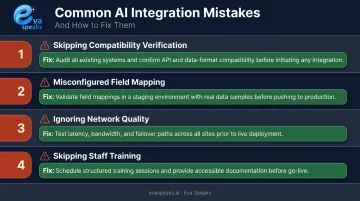
Common Mistakes When Integrating Business Phones — and How to Fix Them
Most integration failures trace back to planning gaps, not fundamental incompatibility.
Skipping compatibility verification — Teams often choose a phone system based on price without confirming it works with their specific CRM version or helpdesk plan tier. Request sandbox or trial access and test the CRM connector, call log sync, and automation triggers with your actual tools before signing a contract.
Misconfigured field mapping — Default mappings in native connectors rarely match a company's custom CRM schema. Call duration may map to the wrong field; caller ID may not match existing records. Manually review all data field mappings during setup, then place a test call from a known contact to confirm the log appears correctly.
Ignoring network quality for VoIP — Deploying a VoIP integration on a network not configured for voice traffic produces choppy audio, dropped calls, and incomplete recordings — breaking the integration data chain at the source. Run a VoIP latency test before deployment, enable QoS on your router, and use wired connections for desk phones where possible.
Skipping staff training — Salesforce found that 66% of sales reps felt overwhelmed by too many tools, and only 37% said their organization fully uses CRM capabilities. An integration configured at the admin level does nothing if staff keep logging calls by hand. Run a structured onboarding session covering click-to-call, auto-logged call records, and transcription access — then document the workflow for future hires.
Want an integration plan tailored to your stack? Get a Customized Workflow Recommendation
Alternatives If Full Integration Isn't Right for You
| Option | Best when | Key trade-off |
|---|---|---|
| Manual call logging | Small teams, low call volume, or evaluating platforms | Zero technical setup; relies on team discipline |
| Middleware (Zapier, Make) | No native connector exists for a specific tool | Third-party dependency; polling latency up to 15 minutes on lower-tier plans |
| UCaaS platform | You want phone, video, messaging, and integrations under one vendor | Higher per-user cost; requires number porting during migration |
Middleware can bridge gaps effectively: a missed call can trigger a task in your project management tool, for example. That said, monitor those workflows regularly. Complex Zapier chains can break silently when an upstream API changes.
If you'd rather skip the middleware layer entirely, UCaaS platforms (RingCentral, 8x8, Microsoft Teams Phone) bundle integrations at the platform level. This consolidates vendor management but increases per-seat cost — Microsoft Teams Phone Standard starts at $10.00 per user/month, with calling plans adding to that figure.
Frequently Asked Questions
What type of phones do offices use?
Modern offices primarily use VoIP IP phones — desk phones or softphones running on computers and mobile devices. Cloud-based and UCaaS platforms have largely replaced traditional landlines and on-premise PBX hardware, with FCC data showing 80.2% of U.S. business/government wireline voice connections were VoIP as of June 30, 2024.
Can I integrate my existing business phone system with CRM software?
Most modern VoIP and cloud-based phone systems offer native CRM integrations with platforms like Salesforce, HubSpot, and Zendesk. Legacy PBX or analog systems typically require SIP trunking or middleware tools to establish the connection, though with more configuration overhead.
What is the difference between VoIP and a traditional office phone system?
VoIP routes calls over the internet and supports software integrations, remote access, and scalable per-user licensing. Traditional systems use physical copper lines and on-site hardware, with limited connectivity to modern office tools and no built-in API support.
How do I connect my business phone system to Microsoft Teams or Google Workspace?
Most major VoIP and UCaaS platforms offer native integrations with Microsoft 365 and Google Workspace, enabled via OAuth authorization in the admin dashboard. This typically syncs calendars, populates meeting links, and enables click-to-call from within those environments.
Does integrating a business phone with office systems require new hardware?
Cloud-based phone integrations typically require no new physical hardware — they run on existing computers, smartphones, or IP desk phones. A network upgrade (router with QoS support) may be needed to maintain call quality, but no dedicated telephony hardware is required.
What is the easiest way to integrate a phone system with office tools without IT support?
Cloud-based VoIP or UCaaS platforms with pre-built native connectors can be configured via a no-code admin dashboard without developer involvement. When native integrations aren't available, middleware tools like Zapier can bridge gaps using trigger-action workflows, making them accessible to non-technical administrators.