Introduction
Microsoft Teams has become a default business communication platform for millions of organizations — but routing inbound calls correctly is one area where the configuration isn't as straightforward as it looks. The settings are buried across multiple admin panels, the policy hierarchy can produce unexpected results, and a single misconfiguration can send calls silently to disconnected voicemail.
This guide walks through inbound call routing in Teams from end to end:
- The two categories of inbound calls and how each is handled
- Prerequisites required before any routing settings take effect
- Step-by-step configuration through the Teams Admin Center and PowerShell
- The parameters that most affect your results
- Where native Teams routing hits its ceiling
Key Takeaways
- Teams routes two inbound call types: PSTN calls (public telephone network) and federated calls (external Teams/Skype users)
- All routing behavior is controlled via Calling Policies in the Teams Admin Center
- You need a Microsoft Teams Phone license and assigned phone numbers before any routing settings work
- The most common mistake: editing the Global policy and assuming it affects every user
- Native Teams policies don't support IVR flows, skills-based routing, or AI call handling — third-party tools fill that gap
Watch how AI-driven inbound routing works on a real call. Watch AI Call Flow Demo
What Is Inbound Call Routing in Microsoft Teams?
Microsoft defines inbound call routing as the automated process of controlling how incoming PSTN and federated calls are handled before they reach a user. The two call types follow different paths — and different rules.
PSTN Calls vs. Federated Calls
PSTN calls arrive from the traditional public telephone network — a customer dialing your business number, for example. These can be delivered through four connectivity models:
- Microsoft Calling Plans
- Operator Connect
- Teams Phone Mobile
- Direct Routing
Federated calls originate from outside your tenant — another company's Teams environment or a Skype for Business tenant. These follow a separate routing path and have fewer configurable options than PSTN calls.
The Four Routing Treatments
Both call types share a common set of routing treatments, with one exception. When a call arrives, Teams applies one of these behaviors:
| Treatment | Admin Center Label | What Happens |
|---|---|---|
RegularIncoming |
Use default settings | Standard ringing behavior |
Unanswered |
Use unanswered settings | Follows user's personal forwarding rules |
Voicemail |
Send to voicemail | Bypasses ringing |
UserOverride |
Let users decide | User controls it in their Teams app |
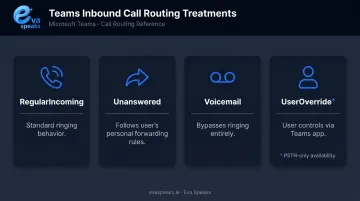
Note: UserOverride (Let users decide) is only available for PSTN calls — not federated calls.
These treatments are enforced at the policy level, applied before a call ever reaches an agent or user. Policies can run globally across the organization or target specific users. That scope distinction matters when you start configuring settings.
What You Need Before Configuring Inbound Call Routing
Skipping prerequisites is the fastest way to waste time configuring settings that won't work. Cover these three areas first.
Licensing and Phone Numbers
Before routing policies do anything, every user receiving inbound calls needs:
- An active Microsoft Teams Phone add-on license (formerly Phone System)
- A phone number assigned through one of the four PSTN connectivity models listed above
Microsoft's setup sequence is: buy and assign the Teams Phone license → choose a PSTN connectivity option → get and assign phone numbers. Skipping any step means routing changes won't apply to real inbound calls.
Admin Access Requirements
Configuring routing requires either Global Administrator or Teams Administrator permissions in Microsoft 365. The Teams Admin Center is at admin.teams.microsoft.com.
For PowerShell configuration, install the Teams module first:
Install-Module -Name MicrosoftTeams -Force -AllowClobber
Connect-MicrosoftTeams
Voicemail and Forwarding Conflicts
Before using "Send to Voicemail" as a routing treatment, verify these configurations are in order:
- Cloud Voicemail enabled for every target user — calls routed to voicemail for users without it will be silently disconnected
- Voicemail policies reviewed under Voice > Voicemail policies in the Teams Admin Center
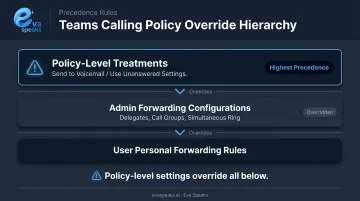
- Existing forwarding rules audited — the "Send to Voicemail" and "Use unanswered settings" treatments take precedence over call forwarding, simultaneous ring, and delegate configurations, overriding rules users have already set
See how AI takes inbound routing to the next level. Explore AI Call Automation
How to Route Inbound Calls in Microsoft Teams
Step 1: Access Calling Policies
Navigate to admin.teams.microsoft.com → Voice → Calling Policies.
This is where all inbound routing behavior lives. Teams includes a preconfigured Global (Org-wide default) policy that applies to every user without a custom policy assigned.
You have two options here:
- Edit the Global policy — changes apply to all users not covered by a custom policy
- Create a new policy — lets you scope routing rules to specific teams, such as support or sales
For most organizations, creating named policies per department is more predictable than modifying the Global policy, which can produce unexpected side effects if some users already have custom policies you haven't accounted for.
Step 2: Configure Routing for PSTN Calls
Open your policy and find Routing for PSTN calls. Select one of the four treatments:
- Use default settings — standard ring behavior
- Use unanswered settings — follows the user's forwarding rules in Teams app > Settings > Calls
- Send to voicemail — bypasses ringing entirely (requires Cloud Voicemail)
- Let users decide — end users control this through their Teams app
PowerShell equivalent:
Set-CsTeamsCallingPolicy -Identity "PolicyName" -InboundPstnCallRoutingTreatment Unanswered
Accepted values: RegularIncoming, Unanswered, Voicemail, UserOverride
Step 3: Configure Routing for Federated Calls
Under the same policy, locate Routing for federated calls. Only three options are available here — "Let users decide" does not exist for federated calls:
- Use default settings
- Use unanswered settings
- Send to voicemail
PowerShell equivalent:
Set-CsTeamsCallingPolicy -Identity "PolicyName" -InboundFederatedCallRoutingTreatment Voicemail
Accepted values: RegularIncoming, Unanswered, Voicemail
Critical: When either "Use unanswered settings" or "Send to voicemail" is selected, these treatments override all other forwarding configurations — delegates, call groups, simultaneous ring. User-configured forwarding rules do not apply once these policy-level treatments are active.
Step 4: Configure Busy Options and Save
The final setting to configure is Busy on busy during calls. Options:
- Off (default) — new calls still reach the user while they're on another call
- On — new callers receive a busy signal
- Use unanswered settings — new calls follow the user's forwarding rules
- Let users decide — user sets this in their Teams app
Note: This setting does not apply to group calls or meeting join requests.
Save the policy, then assign it: open the policy → Assign users → select the relevant user group. This scopes the policy without touching the Global policy.
Key Routing Settings and Parameters That Affect Your Results
Several settings produce unexpected behavior even for experienced Teams admins — knowing where each one lives saves significant troubleshooting time.
Policy Assignment Hierarchy
Teams applies the most specific policy first. If a user has a custom calling policy assigned, it overrides the Global policy entirely. Admins who update the Global policy and expect universal changes will miss anyone already on a custom policy — leading to inconsistent behavior across the organization.
To audit who has what: Users → select a user → Policies tab.
The "Use Unanswered Settings" Interaction
When this treatment is selected, calls follow the target user's personal forwarding configuration set in Teams app > Settings > Calls. This means user-side misconfiguration can override admin-set policy behavior. If calls aren't routing as expected, always check the user's personal call settings alongside the assigned calling policy.
Screen-Pop for Incoming PSTN Calls
Two PowerShell parameters enable a web app or CRM URL to auto-launch when a PSTN call arrives:
Set-CsTeamsCallingPolicy -Identity "PolicyName" `
  -PopoutForIncomingPstnCalls Enabled `
  -PopoutAppPathForIncomingPstnCalls "https://yourcrm.com/lookup?phone={phone}"
The {phone} placeholder passes the caller's number in E.164 format to the URL — useful for screen-popping customer records automatically.
Precedence Summary
| Setting | Overrides |
|---|---|
| Send to voicemail | Delegates, call groups, simultaneous ring, forwarding rules |
| Use unanswered settings | Same as above — follows user's personal settings instead |
Before applying either treatment, audit existing forwarding configurations for affected users. Routing that appears broken is often behaving exactly as a user's personal settings dictate — not as the admin intended.
Want routing configured for your team's exact call structure? Get a Customized Workflow Recommendation
Common Mistakes and Troubleshooting
Editing the Global Policy Won't Affect All Users
Check user-level policy assignments first under Users > Manage users > [select user] > Policies tab. Anyone with a custom policy assigned won't be affected by Global policy changes.
Enabling "Send to Voicemail" Without Cloud Voicemail
Per Microsoft, Teams disconnects calls sent to users without voicemail enabled. Verify voicemail status under Voice > Voicemail policies before applying this treatment.
Calls Routing to Voicemail Unexpectedly
Two likely causes:
- PSTN routing treatment is set to "Send to voicemail" in the assigned calling policy
- "Busy on busy" is set to "Use unanswered settings" and the user's personal forwarding rules point to voicemail
Check both the calling policy assigned to the user and their personal call settings in the Teams app.
Federated Calls Not Following the Expected Path
Federated routing doesn't support "Let users decide." Changes to InboundFederatedCallRoutingTreatment can take time to propagate across larger tenants, so if the change doesn't take effect immediately, allow a few minutes before troubleshooting further.
Routing Approaches Compared
Here is how AI-powered, traditional IVR, and skills-based inbound call routing compare:
| AI-Powered Routing (EvaSpeaks) | Traditional IVR Routing | Skills-Based ACD Routing | |
|---|---|---|---|
| Features | Intent detection, dynamic routing, real-time rules update | DTMF menus, fixed routing trees | Agent skill matching, ACD queue |
| Best-fit Business Size | SMB to mid-market | Large enterprises | Mid-market to enterprise contact centers |
| Key Strengths | No caller effort, instant rule updates, no IT needed | Familiar, structured | Best-fit agent matching |
| Implementation Complexity | Low - no code | High | Medium to High |
| Integration Capability | CRM, EHR, scheduling native | Custom dev required | CRM via API |
When Native Teams Routing Isn't Enough
Teams Calling Policies handle the fundamentals well: voicemail, forwarding treatment, busy handling, and basic PSTN/federated routing. What they don't do:
- IVR menus — these are an Auto attendant feature, configured separately under Voice > Auto attendants
- Round-robin or skills-based distribution — these are Call queue routing methods, not Calling Policy settings
- AI-assisted routing — not a native Calling Policy capability
- CRM-based caller identification — requires additional integration layers
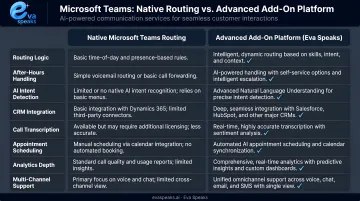
For most internal Teams users, Calling Policies are sufficient. But customer-facing support lines, high call volume environments, or businesses that want intent-based routing quickly outgrow what native settings can provide.
That's where add-on routing platforms extend what Teams Phone already does. EvaSpeaks, for example, layers AI-enabled call handling on top of your existing telephony setup — adding LLM-driven call flows, customizable routing scripts, and real-time transcription without requiring you to rebuild your infrastructure. For businesses that have invested in Teams Phone and want more without starting over, that kind of extension is worth evaluating. EvaSpeaks connects to existing telephony through standard integrations rather than requiring a platform migration, which is why it suits organizations that want to extend their Microsoft Teams routing capabilities with AI without displacing their current phone investment.
When assessing any add-on routing platform, look for:
- Compatibility with your existing PSTN connectivity model
- Customizable call-flow scripting (not just preset templates)
- Real-time or near-real-time transcription for call quality and compliance
- Routing rules based on caller intent or history, not just availability or time-of-day
- Clear data handling and privacy policies, particularly for US-based deployments
See it in action for your business. Request Live Demo
Frequently Asked Questions
What is inbound call routing?
Inbound call routing is the automated process of directing incoming calls to the right person, department, voicemail, or external number based on rules you configure — before anyone manually answers. In Teams, this is controlled through Calling Policies applied to PSTN and federated calls.
What is inbound caller ID routing?
Caller ID routing uses the incoming caller's phone number to determine where a call goes. Businesses use it to prioritize VIP callers, block unwanted numbers, or bypass the general queue and send specific callers straight to a dedicated agent or department.
What is an example of call routing in Teams?
A user's PSTN calls are set to "Use unanswered settings." If they don't answer within 20 seconds, the call automatically forwards to their designated backup contact or voicemail — whichever they've configured in their Teams app under Settings > Calls.
Why is my phone routing calls to voicemail immediately?
The most common causes: the assigned calling policy has "Send to Voicemail" set as the PSTN routing treatment, or "Busy on Busy" is set to "Use unanswered settings" with the user's forwarding rules pointing to voicemail. Check both the policy and the user's personal Teams call settings.
What does "inbound outbound calls" mean?
Inbound calls come into your business from an external party; outbound calls are ones your team places to external numbers. In Teams, each direction has its own policy controls — inbound routing lives in Calling Policies, while outbound permissions are managed separately.